
It’s 7:15. The doorbell keeps ringing, the playlist just skipped to a song you hate, and someone’s asking if Ben is here yet. You have no idea. Your guest list is a screenshot of a group chat.
Checking guests in sounds like something only conference organizers do. But even at a 30-person party, knowing who’s actually here helps. You know who to text when they’re running late, who to introduce to whom, and how many people really showed up for next time.
This guide shows you how to check in guests at an event, from the free paper method to ticking people off on your phone with Mixily. (If you’re still at the RSVP stage, start with our guide to tracking attendees for your party.)
Quick verdict: For under 20 guests, a printed list and a pen works fine. For anything bigger, or if a friend is helping at the door, use a phone check-in list that searches by name and lets you add walk-ins on the spot. Mixily’s check-in is built into every event on the Lite, Pro and Plus plans. Create your event on Mixily →
Do You Even Need to Check In Guests?
Honestly? Not always.
Skip check-in for a dinner party of eight. You’ll know who’s there. You can count them.
Use check-in when:
- You’ve got 25+ guests and won’t greet everyone personally.
- Someone else is working the door (a co-host, a friend, a volunteer).
- People are arriving over a few hours, like an open house.
- It’s a club, community or work event where you want to know real attendance for next time.
- There’s a capacity limit at the venue.
3 Ways to Check In Guests
1. The paper list (free, fine for small parties)
Print your guest list in alphabetical order by first name. Put it on a clipboard by the door with a pen. Tick names as people arrive and write walk-ins at the bottom.
It works. The downsides: one copy, so only one person can use it, it’s hard to read in a dim hallway, and you have to count ticks by hand at the end.
2. A shared spreadsheet
Export your guest list into Google Sheets, add a “Here” column, and share it with whoever’s on door duty. Better than paper because two people can use it at once.
The downside: spreadsheets are fiddly on a phone. Tiny cells, accidental edits, and no quick way to add a walk-in.
3. A check-in list on your phone
A proper event check-in app gives you a search bar, one big button per guest, a running count, and a way to add walk-ins. This is what Mixily’s check-in does, and it’s connected to the RSVPs you already collected, so there’s nothing to import.
How to Check In Guests with Mixily (Step by Step)
Check-in at the door is included on Mixily’s Lite, Pro and Plus plans.
Step 1: Make sure check-in is on
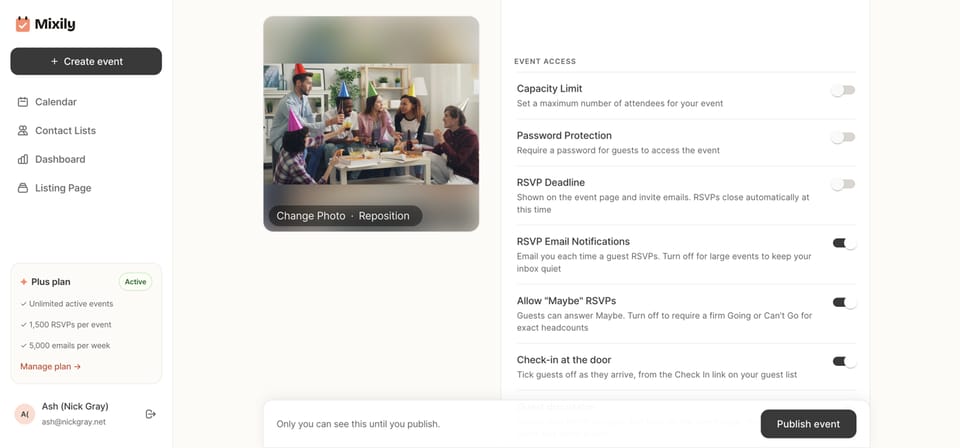
When you create or edit your event, scroll to Options. Check-in at the door is on by default. If you don’t need it for a particular event, switch it off.
Step 2: Open Check In from your guest list
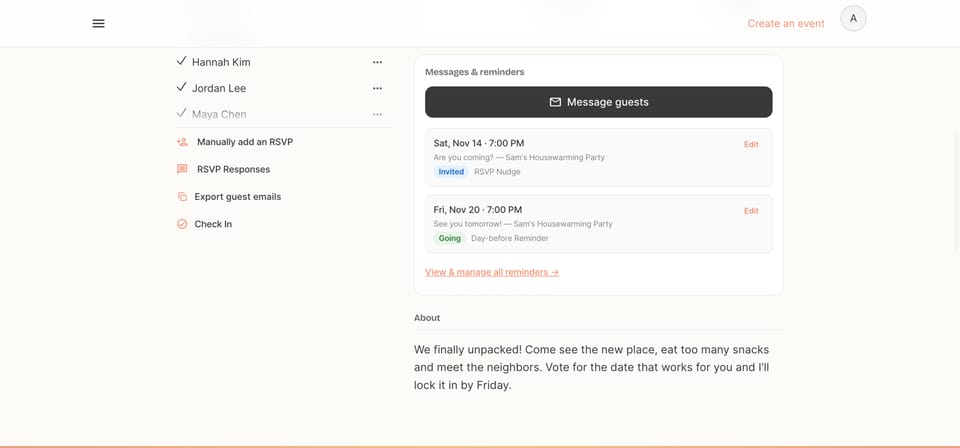
On your event page, look at the Guests card. Below your guest list you’ll see Check In. Tap it. Bookmark the page on your phone before the party so it’s one tap away.
Step 3: Tick guests off as they arrive
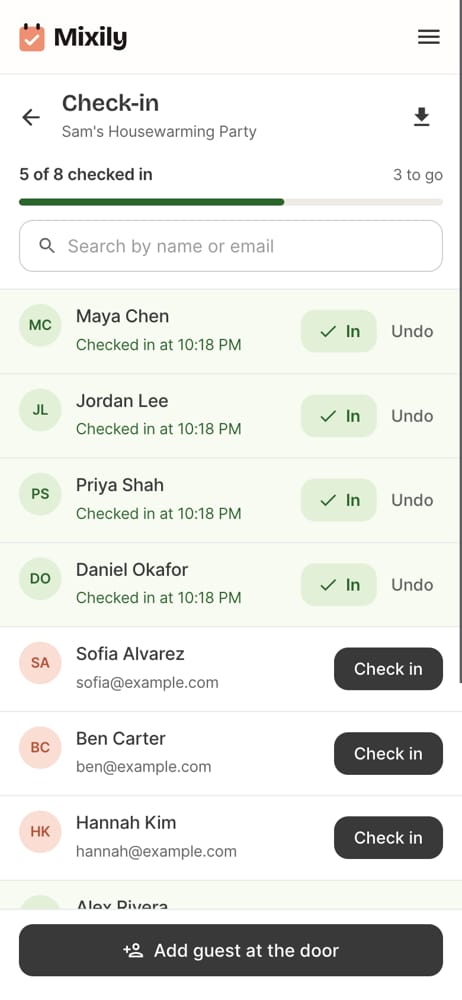
Every guest who said they’re going is listed with a big Check in button. Use the search bar to find someone by name or email in a second. Checked in the wrong person? Tap Undo.
At the top you get a live count: how many guests are checked in, how many are still to arrive, and the total.
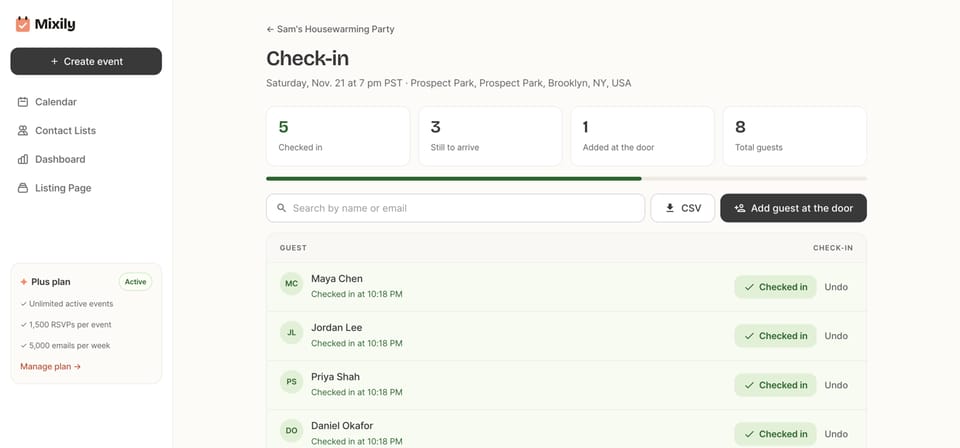
On a laptop you see the same thing with a bit more detail, including the time each guest was checked in.
Step 4: Add walk-ins at the door
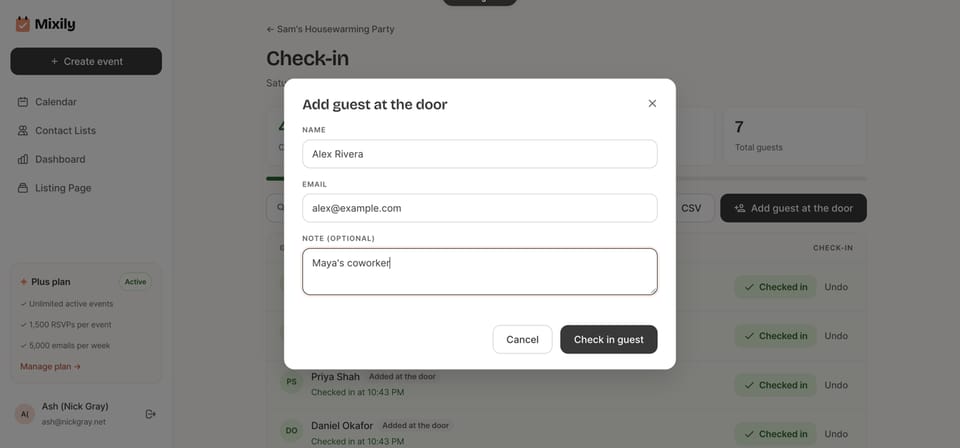
Someone’s bringing a coworker you didn’t know about? Tap Add guest at the door, type their name and email, and add an optional note like “Maya’s coworker.” They’re checked in and added to your guest list in one step.
Step 5: Download the list after the party
Tap the download icon (or CSV on desktop) to export the check-in list as a spreadsheet. It’s useful for a thank-you email, or for seeing who actually comes to your events.
Tips for a Smooth Check-In Table
- Put a friendly person at the door, not a bouncer. Check-in should feel like a welcome, not security.
- Pair it with name tags. While someone finds their name, hand them a name tag. It helps everyone meet faster.
- Send the day-before reminder. Fewer people forget, and you get a more accurate list. Mixily sends one automatically.
- Charge your phone. Sounds obvious. A dead phone at 7pm means back to pen and paper.
- Hand off the door after the first hour. Most guests arrive in the first 45 minutes. After that, go host.
FAQ About Checking In Guests
What’s the easiest way to check in guests at a party?
For small parties, a printed alphabetical list and a pen. For bigger events, a phone check-in list that’s linked to your RSVPs, so you can search by name and add walk-ins without a separate spreadsheet.
Is there a free event check-in app?
Some check-in apps have free tiers, often with guest limits. Mixily’s check-in is part of its paid plans (Lite, Pro and Plus), and it uses the RSVPs you already collected, so you don’t have to import a list. The paper method is always free.
How do I handle guests who didn’t RSVP?
Add them at the door. In Mixily, tap Add guest at the door, enter their name and email, and they’re checked in and added to the guest list.
Can more than one person check in guests?
Co-hosts can help run your event in Mixily. Add them from Manage Hosts on the event page.
Does Mixily check-in use QR codes?
No. You check guests in by tapping their name or searching for it, which is faster than scanning for most parties and doesn’t need guests to dig up a code.
Know Who’s Here, Then Go Enjoy Your Party
A good check-in takes the guessing out of the first hour so you can spend the rest of the night as a host, not a doorman.
Ready to host your event?
Create your event page on Mixily: collect RSVPs, then tick guests off on your phone at the door.
Create your free event page →